Getting Started with Oversight
This comprehensive guide will help you set up the complete Oversight platform on your local machine or production environment.
What You’ll Build
By following this guide, you’ll have a fully functional enterprise data observability platform with:
- ✅ Centralized Authentication - Single sign-on across all services
- ✅ Data Catalog - Searchable inventory of all data assets
- ✅ LLM Monitoring - Complete observability for AI applications
- ✅ Unified Storage - S3-compatible object storage for all data
- ✅ Secure Access - Role-based access control and audit logging
Total Setup Time: 30-45 minutes
Prerequisites
Before you begin, ensure you have the following installed:
Required Software
- Docker (version 20.10 or later)
- Install Docker Desktop for Mac/Windows
- Ensure Docker has at least 8GB RAM allocated
- Docker Compose (version 2.0 or later)
- Included with Docker Desktop
- Python 3 (version 3.8 or later)
- Git
Optional (for Development)
- Node.js (version 16 or later) - if building frontend applications
- kubectl - for Kubernetes deployments
- helm - for production deployments
System Requirements
- RAM: Minimum 8GB, recommended 16GB
- Disk Space: At least 20GB free
- OS: macOS, Linux, or Windows (with WSL2)
- Network: Internet connection for downloading images
Architecture Overview
Oversight consists of four main components that work together seamlessly:
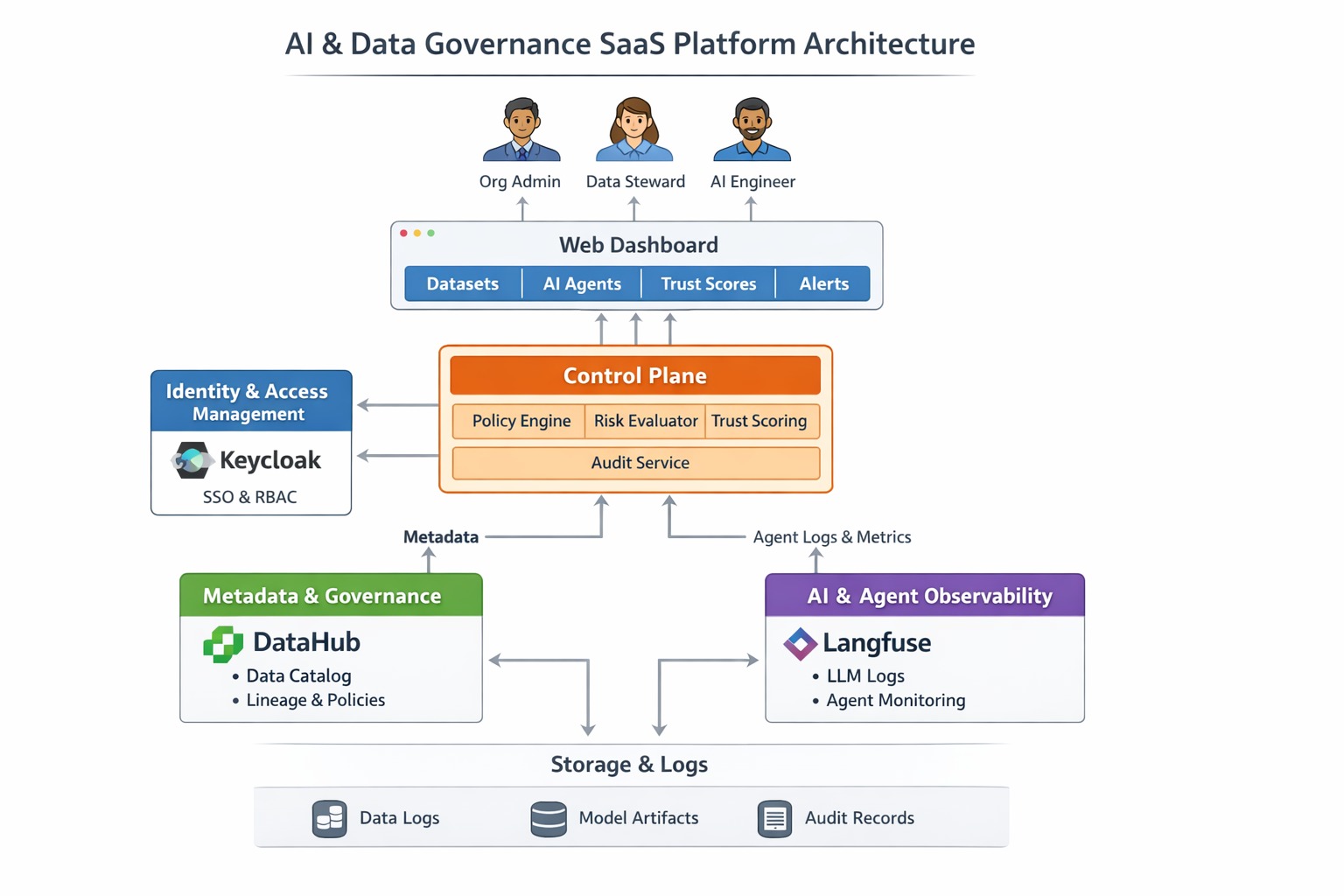
Component Roles
- Keycloak: Central authentication hub (start here!)
- MinIO: Unified storage for all observability data
- DataHub: Data catalog and governance layer
- Langfuse: LLM application monitoring and analytics
Installation Steps
We’ll install components in order of dependency. Follow each step carefully.
Step 1: Set Up Keycloak (Authentication)
Keycloak provides centralized authentication for all Oversight components. This is the foundation of your platform.
# Pull and run Keycloak
docker run -d -p 8080:8080 --name keycloak \
  -e KEYCLOAK_ADMIN=admin \
  -e KEYCLOAK_ADMIN_PASSWORD=admin \
  quay.io/keycloak/keycloak:26.5.2 start-dev
Wait for startup (30-60 seconds):
# Check if Keycloak is ready
docker logs keycloak | grep "Started"
Access Keycloak:
- URL:
http://localhost:8080 - Username:
admin - Password:
admin
What to do next:
- Login to the admin console
- Create a realm called
oversight - Create clients for each service (see detailed steps in Keycloak Integration Guide)
💡 Pro Tip: Bookmark the Keycloak admin console—you’ll use it to manage users and permissions.
Step 2: Set Up Langfuse (LLM Observability)
Langfuse provides comprehensive observability for LLM applications with integrated MinIO storage.
# Clone Langfuse repository
git clone https://github.com/langfuse/langfuse
cd langfuse

# Start all services (includes MinIO, PostgreSQL, Redis, ClickHouse)
docker compose up -d
Wait for all services to start (2-3 minutes):
# Check service status
docker compose ps
Access Services:
- Langfuse UI:
http://localhost:3000 - MinIO Console:
http://localhost:9091- Username:
minio - Password:
miniosecret
- Username:
What to do next:
- Sign up for a Langfuse account at
http://localhost:3000 - Create an organization called
oversight - Create a project called
oversight-app - Generate API keys for your applications
Services Included:
- Langfuse Web & Worker (LLM observability)
- MinIO (object storage)
- PostgreSQL (primary database)
- ClickHouse (analytics database)
- Redis (caching and queuing)
Step 3: Set Up DataHub (Data Catalog)
DataHub provides metadata management and data governance.
# Install DataHub CLI
python3 -m pip install --upgrade pip wheel setuptools
python3 -m pip install --upgrade acryl-datahub

# Quick start with Docker
datahub docker quickstart
Wait for startup (3-5 minutes):
# Check DataHub logs
docker logs datahub-gms-1
Access DataHub:
- URL:
http://localhost:9002 - Username:
datahub - Password:
datahub
What to do next:
- Explore the sample data catalog
- Set up data source ingestion (databases, warehouses, etc.)
- Configure authentication with Keycloak (see detailed steps in DataHub Integration Guide)
Services Included:
- DataHub GMS (Graph Metadata Service)
- DataHub Frontend (React UI)
- Elasticsearch (search and indexing)
- PostgreSQL (metadata storage)
- Kafka (event streaming)
For detailed configuration, see the DataHub Integration Guide.
Verification & Testing
After installation, verify all services are running correctly:
Check Container Status
# Check all Docker containers
docker ps --format "table {{.Names}}\t{{.Status}}\t{{.Ports}}"

# You should see containers for:
# - keycloak (Up)
# - langfuse-web (Up)
# - langfuse-worker (Up)
# - postgres (Up, healthy)
# - clickhouse (Up, healthy)
# - minio (Up, healthy)
# - redis (Up, healthy)
# - datahub-gms (Up)
# - datahub-frontend-react (Up)
# - elasticsearch (Up)
# - kafka (Up)
Test Each Service
1. Test Keycloak:
curl -s http://localhost:8080/health | grep UP
# Should return: "UP"
2. Test Langfuse:
curl -s http://localhost:3000 | grep -q "Langfuse" && echo "✓ Langfuse is running"3. Test MinIO:
curl -s http://localhost:9090/minio/health/live
# Should return: 200 OK
4. Test DataHub:
curl -s http://localhost:9002 | grep -q "DataHub" && echo "✓ DataHub is running"Quick Smoke Test
Access each service in your browser:
- ✅ Keycloak:
http://localhost:8080- You should see the admin console login - ✅ Langfuse:
http://localhost:3000- You should see the signup/login page - ✅ MinIO:
http://localhost:9091- You should see the MinIO console login - ✅ DataHub:
http://localhost:9002- You should see the DataHub home page
Access Points Reference
| Service | URL | Default Credentials | Purpose |
|---|---|---|---|
| Keycloak Admin | http://localhost:8080 | admin / admin | User & access management |
| Langfuse UI | http://localhost:3000 | Sign up required | LLM observability dashboard |
| MinIO Console | http://localhost:9091 | minio / miniosecret | Object storage management |
| DataHub | http://localhost:9002 | datahub / datahub | Data catalog & lineage |
Integration & Configuration
Now that all services are running, follow these steps to integrate them:
1. Configure Keycloak Realm & Clients
Set up authentication for all services:
# In Keycloak Admin Console (http://localhost:8080)
1. Create realm: 'oversight'
2. Create client: 'oversight-datahub'
3. Create client: 'oversight-langfuse'
4. Create users and assign roles
📖 Detailed Guide: Keycloak Configuration →
2. Connect Langfuse to Keycloak
Enable SSO for Langfuse:
# Add to langfuse .env file
AUTH_PROVIDER=keycloak
AUTH_KEYCLOAK_ID=oversight-langfuse
AUTH_KEYCLOAK_ISSUER=http://localhost:8080/realms/oversight
📖 Detailed Guide: Langfuse Configuration →
3. Connect DataHub to Keycloak
Enable SSO for DataHub:
# datahub.properties
auth.oidc.enabled=true
auth.oidc.clientId=oversight-datahub
auth.oidc.discoveryUri=http://localhost:8080/realms/oversight/.well-known/openid-configuration
📖 Detailed Guide: DataHub Configuration →
4. Start Using the Platform
For Data Teams:
- Catalog your data sources in DataHub
- Track data lineage across systems
- Set up data quality checks
For AI/ML Teams:
- Instrument LLM applications with Langfuse
- Monitor costs and latency
- Optimize prompts based on real data
For Platform Teams:
- Manage user access via Keycloak
- Monitor storage usage in MinIO
- Set up backup and disaster recovery
Next Steps by Role
👨💼 Data Governance Lead
- Set up DataHub data sources
- Define business glossary terms
- Create data domains and ownership
- Implement data quality rules
🤖 AI/ML Engineer
- Instrument LLM applications
- Set up prompt management
- Create evaluation datasets
- Monitor production deployments
🔧 Platform Engineer
- Configure Keycloak SSO
- Set up user groups and roles
- Configure backup strategies
- Plan for production deployment
👨💻 Application Developer
- Integrate Keycloak authentication
- Use Langfuse SDKs in your apps
- Query DataHub APIs for metadata
- Store artifacts in MinIO
Common Use Cases
Use Case 1: Data Discovery
# Search for datasets in DataHub
curl -X POST http://localhost:9002/api/graphql \
  -H "Content-Type: application/json" \
  -d '{"query": "{ search(input: {type: DATASET, query: \"customer\"}) { searchResults { entity { urn } } } }"}'
Use Case 2: Monitor LLM Costs
from langfuse import Langfuse

langfuse = Langfuse()
trace = langfuse.trace(name="customer-query")
# Your LLM code here
# Costs automatically tracked in Langfuse dashboard
Use Case 3: Secure API Access
// Authenticate with Keycloak
const token = await keycloak.getToken();
// Use token to access protected resources
Troubleshooting
Port Conflicts
If you encounter port conflicts, you can modify the port mappings in the docker commands or docker-compose files.
Common conflicts:
- Port 8080 (Keycloak): Change to 8081
- Port 3000 (Langfuse): Change to 3001
- Port 9002 (DataHub): Change to 9003
Memory Issues
Ensure Docker has at least 8GB of RAM allocated:
- Docker Desktop: Settings → Resources → Memory → 8GB
Container Health Checks
# Check logs for any specific container
docker logs <container-name> --tail 100

# Restart a problematic container
docker restart <container-name>

# Remove and recreate if needed
docker rm -f <container-name>
# Then re-run the installation command
Service Not Starting
# Check Docker disk space
docker system df

# Clean up if needed
docker system prune -a --volumes

# Then retry installation
Production Deployment
For production deployments, consider:
Infrastructure
- ✅ Use Kubernetes with Helm charts
- ✅ Set up proper SSL/TLS certificates
- ✅ Configure external databases (PostgreSQL, Elasticsearch)
- ✅ Implement backup and disaster recovery
- ✅ Set up monitoring and alerting (Prometheus, Grafana)
Security
- ✅ Change all default passwords
- ✅ Enable audit logging
- ✅ Set up network isolation
- ✅ Implement rate limiting
- ✅ Regular security updates
Scalability
- ✅ Deploy multiple instances for high availability
- ✅ Use load balancers
- ✅ Configure auto-scaling
- ✅ Optimize database performance
See individual component guides for production deployment details.
Additional Resources
Documentation
- Component Overview - Detailed docs for each tool
- Integration Guides - Step-by-step configuration
- About Oversight - Architecture and use cases
Community Support
Video Tutorials
Coming soon! Check back for video walkthroughs.
Need help? Check out our detailed integration guides or join the community channels.
Troubleshooting
Port Conflicts
If you encounter port conflicts, you can modify the port mappings in the docker commands or docker-compose files.
Memory Issues
Ensure Docker has at least 8GB of RAM allocated. You can adjust this in Docker Desktop settings.
Container Health
Check container logs for any issues:
docker logs <container-name>Production Deployment
For production deployments, consider:
- Using Kubernetes with Helm charts
- Setting up proper SSL/TLS certificates
- Configuring external databases
- Implementing backup and disaster recovery
- Setting up monitoring and alerting
See individual component guides for production deployment details.